What is a Risograph? How to use it and create data (with images)
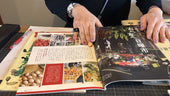
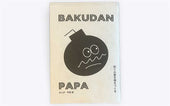
HIRATADAIRISO Kagaku Kogyo's Risograph stencil duplicator is popular for producing ZINEs (small-run self-published books) and paper crafts due to its distinctive print quality.
However, it requires careful use as its operation differs from regular printers. This article explains the basic usage of the Risograph.
What is a Risograph?

A Risograph is a stencil duplicator made by RISO Kagaku Kogyo. RISO is the company behind Print Gocco, which was once found in almost every home for printing New Year's cards. While Print Gocco is no longer in production, the Risograph, like Print Gocco, is a machine that prints like a silkscreen.
It works by creating a "master" each time, through which ink permeates to print the image.
Common in schools and public facilities, with "Riso studios" gaining international popularity.
The Risograph, which was once widely adopted in elementary schools and city offices as an alternative to "mimeograph machines," is still commonly found in educational institutions and public facilities. In such places, it is often used for printing large quantities, such as "for quantities of ● sheets or more, use the Riso." This is likely because the cost of the master (stencil) becomes relatively high for smaller print runs.
It is often used for art projects and ZINE production, and its popularity first took off overseas, gaining traction in Japan after the 2000s. Today, there are Riso studios throughout Japan and overseas, which can be found on the following page:
https://www.riso.co.jp/learn/risoart/links.html
What the Risograph excels at
Distinctive finish

The Risograph's main characteristic is its distinctive finish. The way the ink soaks into the paper gives it a somewhat nostalgic feel compared to inkjet printers.
Printing large quantities of the same page quickly

Since it works by creating a master, it's excellent for flyer printing. This is why many real estate agents use it.
Clear text reproduction
Depending on the paper combination, printing with "HG (High Grade)" black ink can beautifully render fonts.

It's also possible to create a master by scanning handwritten drawings or text.
What it's not good at
Printing multiple pages at once
With a typical home or office printer, if you output a 16-page PowerPoint document by pressing "Ctrl+P," all 16 pages will be printed sequentially. However, with a Risograph, you can only create one master at a time (or two with a two-color machine), so even a 16-page document can only print one page at a time.
Therefore, to create a booklet, you need to print each spread and then collate them.
Slightly expensive
Because the master (stencil) cost is high, printing costs tend to be slightly higher for small print runs. However, once a master is made, the cost per print decreases as more copies are printed.
Not ideal for high-definition photos
It's not good at printing crisp, four-color (CMYK) photos like gravure printing. Instead, it excels at printing grayscale or single-color images with a distinctive texture. However, it's possible to simulate four-color CMYK printing by layering master plates using techniques like Adobe Photoshop's channel separation.


Adding colors is difficult due to the high cost of drums
This is more of an operational issue, but since each drum for ink and master costs about 150,000 yen, increasing the number of colors tends to be expensive.
How to use a Risograph
Here's how to use a Risograph.
*This explanation uses the two-color MF935 machine at DIY BOOKS as an example. For single-color machines and others, please refer to the instruction manual as specifications may differ.
1. Turn on the power

2. Enter the PIN as needed

If you are a registered user, you can track your print usage on the counter.
3. Insert the drum

Insert the drum of the desired color as needed.

4. Load the paper
Press the button to lower the paper tray.
*The blue button, not visible in the photo below, should be long-pressed.

5. Send data to the Risograph from your computer or other device
If it's a PDF, open it with Adobe Acrobat Reader and select "Print" from Ctrl+P or the menu bar. If you have "Preview/Edit" selected in the driver, a preview screen will open. If everything looks good, then click Ctrl+P or the printer icon to output.
6. Output "Waiting for Output" → Master is created
When the Risograph makes a "beep" sound, it means the data has been sent. Afterwards, confirm the file name in the "Waiting for Output" display on the Risograph's monitor and output. There may be times when it doesn't beep, such as during printing. If you are making a master with that drum for the first time that day, the idling time may take longer.
First, a master will be created, and then one test print will be made. Since one master print is made for each master, a total of three prints will be made for two-color printing.
7. If everything is satisfactory, enter the number of copies to print and press "Start."

You can adjust the density and speed as needed. This allows you to print for the time being.
Driver Installation
Download the driver from the RISO Kagaku Kogyo website and follow the instructions in the manual to install it.
*The Mac version seems to be paid.
How to view print properties
For Windows, open "Printers & scanners" from the Start menu or the search bar on the taskbar (for Windows 11), select the Risograph model number (e.g., RISO MF935), and then open "Properties (Print Settings)."
"Separation settings" is often used.


・Separation Settings
First, choose either "1 color" or "2 colors."

Drum color information from the previous use may remain, but after physically changing the drum, pressing "Update" will refresh it to the actual drum color.
Manual color separation
While "Auto separation" is typically used, it sometimes fails to accurately distinguish colors. By selecting manual separation and setting "Black → Drum ①, Other → Drum ②" and so on, the Risograph will automatically separate and divide the color data. If it doesn't work well, try a few different combinations.


Set text and images as close to each other as possible.
If you're printing in a single color (with grayscale data), color separation settings are largely unnecessary.
If the color separation is not reflected, it might be due to caching, so it often helps to restart the app/software, although it can be a hassle.

You can also manually set up color separation to some extent by selecting areas with the freehand or rectangular selection tools in the preview screen and filling them with the chosen ink.
For booklet printing
First, print the front, then flip the paper over and print the back. At this point, simply align the top and bottom edges. Taking a photo of the front print can help prevent errors.
How to create data
For information on how to create data, please refer to the numerous examples provided by Retro Insatsu JAM.
Expressing by layering colors
For example, our DIY BOOKS only have red, blue, yellow, and black ink. To create "green," you need to print yellow and then layer blue on top. In this case, you repeat single-color printing. The data should be in grayscale, and you adjust the density accordingly.

For layering samples, Retro Printing JAM's "Asobi Catalog 2" is a useful reference.
Common errors
If paper gets jammed
Paper jams are common. The Risograph will alert you, and you should gently pull out the jammed paper.
Incidentally, there's a dial to adjust for paper thickness, so it's worth trying, especially for thicker paper. Conversely, if paper jams because it's too thin, it might not be suitable for the Risograph, but sometimes adjusting the internal blower (air pressure) can help. However, it's better for an administrator to do this rather than an individual user.

In case of double feeding
Double feeding (jūsō) is when multiple sheets of paper are fed at once. The Risograph will notify you when a blank page appears (if detection settings are ON). It's a good idea to place blank pages at the bottom of the stack of paper, for example.
It might help to fan the entire stack of paper to introduce air, or lightly humidify it slightly to make it feed more smoothly.
【Reference Video】
Ink replacement

When the ink runs out, twist and remove the ink from the drum, then remove the cap from the new ink bottle and twist it in.

You can contact a RISO Kagaku Kogyo salesperson to collect empty ink bottles. Alternatively, when you order new bottles, a cardboard box will be provided for you to return them.
Master jammed

A warning display will appear when a certain amount of master has been ejected. In that case, gently pull out the blue part of the master ejection box, discard the used master, and put it back.
*Similarly for other parts, the blue parts are the "parts that users are allowed to touch."
Replacing the master

When the master runs out, follow the instructions to remove the old master, then pull out the new master a little and insert it.
When "This size cannot be 2-color printed" appears
Risographs generally only feed paper from the short edge, so this error may appear if the paper is irregularly shaped or if you are trying to feed it from the long edge. This can sometimes be resolved by changing the data or feed direction, or by making sure the paper is properly placed on the feed tray and adjusting the knob to align with the paper.
Summary
Above, we've covered an overview and basic usage of the Risograph. If you encounter errors or become unsure, always ask the administrator or consult the instruction manual. Risographs have a lot of depth in their print settings, so if you're interested, be sure to explore further.