What is a bleed? Settings you must check before submitting your ZINE
平田提
Many people have likely experienced the moment after finishing a ZINE, submitting it for printing, and then opening the delivered booklet to find, "There's a white border!"
The main reason for this is often not setting "bleed." While it might seem like a minor detail, knowing this can drastically change the final result. If you're planning to make a ZINE, this is essential reading before submitting your work.
What is Bleed?

Bleed is the extra margin set beyond the finished size, which is trimmed during the binding process.
For example, if you're making an A5 ZINE, the printing company will actually print on paper larger than the final finished size (in this case, A5, or an A4 spread). It's common to print on large sheets like A0, then fold and bind them.
When multiple sheets of paper are stacked and cut, miscuts inevitably occur. Even if held firmly by equipment, the paper can shift as the blade comes down.

In such cases, by cutting according to the designated bleed area, the desired size can be achieved.
Typically, an additional print area of (most often) 3mm is secured outside the finished size (A5 in the example above). This is the bleed.
If you cut without setting bleed, a white border may remain on the printed material. Most printing presses almost always produce a white border, for reasons such as protecting internal mechanisms.
If you want to print photos or solid colors all the way to the edge, extend the images to overflow into this bleed area. That way, no white border will remain after trimming.
*At this time, make sure to enlarge only the target image, etc., to the bleed, not the entire page.
*If the background color is white and there is sufficient margin, you do not need to set a bleed.
What is the Finished Size?

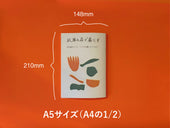
The finished size refers to standard sizes such as 148mm x 210mm for A5. Even if you don't set bleed, you should place your data at least 3mm inside the finished size to prevent your content from being unintentionally cut during trimming.
How to Set Bleed in Each App
How to Set Bleed in Canva

If you're using Canva, you can set the bleed by simply checking "Show print bleed" from the "File" menu. Once a white frame appears around the page, the setting is complete.

When downloading a PDF for submission, select "PDF Print" and check "Crop marks and bleed." This will download the PDF with cross marks (also known as trim marks or registration marks) at the four corners, indicating where to cut. These marks convey the precise cutting position to the printing company.
How to Set Bleed in Adobe Illustrator

To create bleed in Adobe Illustrator, first check the artboard settings screen when creating a new file. Enter "3mm" in the "Bleed" input fields for top, bottom, left, and right (in standard settings, they are linked, so entering in one place will apply to all).

For existing documents, you can also set it via [File] → [Document Setup] → [Bleed]. If it doesn't appear, try checking [View] → [Show Bleed].
To set crop marks (trim marks), go to [Effect] → [Trim Marks] in the menu.
How to Set Bleed in Adobe InDesign

Similar to Illustrator, Adobe InDesign allows you to set bleed in the "Bleed" section of the [New Document] creation screen or [File] → [Document Setup].
Adobe Photoshop

In Adobe Photoshop, you can set the bleed on the new file creation screen. For existing files, go to [Image] → [Canvas Size] and add 3mm to the top, bottom, left, and right (this means adding 6mm to both "Width" and "Height"). For example, for an A4 size document (210x297mm) as shown in the image above, you would set it to 216x303mm by adding 6mm of bleed to both height and width.
Setting in Word
Microsoft Word is not a DTP software, so you cannot add bleed or crop marks afterwards. However, if your ZINE has a white background and is text-focused, you likely won't encounter trimming issues even without setting bleed.
If you're concerned, go to Page Setup and "Manage Custom Sizes" to set the size by adding 3mm to the top, bottom, left, and right of the finished size.
For example, if it's an A4 spread (210 x 297mm), set it to "216 x 303mm" (adding 6mm to both height and width).
・Related article: How to Choose the Best App for Making ZINEs
Summary
Regardless of the software you use, setting the bleed and downloading the PDF with trim marks (crop marks) is generally sufficient. If you submit your work and then decide you "need to make corrections," it can lead to communication with the printing company, potentially delaying the delivery and incurring additional costs. Checking the bleed beforehand can prevent this. So, make sure to check and confidently submit your ZINE!